Sunday, November 3, 2013

Turned the old smart phone into a child friendly device for the GBaby

After reading a diverse group of articles on "Reuse/Repurpose your old smart phone," I decided to repurpose the old S2 for the 3 year old GBaby. She tinkers with the iPad, Kindle, Chromebook, and our phones as I support her being platform agnostic...but this is her device. 

So what did I do?

First, I read many articles on the topic, good, bad, historical, recent, and indifferent. Tech Radar has a good read on, "How to make Android child friendly". But if you are looking to make that old device a webcam  a video monitor, or a kitchen aid, just Google, "reuse or repurpose old cell phone". The search produces so many choices and there so little time to read all 92,000 of them. Then I decided on a plan of action and the functional steps I did are:

1. Hard reset on the device, not a factory reset. How you do this is on your device is different based on the device. We opted for the option described in this Android forum that explains the factory and the hard resets. 

2. Synced it with my account. This might be a good time to create that other Google account to associate all of those games, books, and shows for kids.

3. Downloaded Kids Place from Google Play. As you can see the search for parental controls in Google Play produces many results. So tinker with a few, see what other techie parents/Gparents/guardians are using, and review the ToS (Terms of Service).


4. Download AppLock. Again, lots of choices, ask around, ask why and why not, and review ToS and make the selection on your preferences.


Even if you employ network defense tools, you still want to protect the device and the user, so you will want to download and install some type of antivirus app or add your device to your existing program. Because the ratings change month to month, check out the AV Test site with monthly reports, for mobile, home, and corporate users.

Then download/transfer all the child apps to the device. Kids Place lets you select the apps that the child will access and you can see screen shots and the video in Google Play. The only way out is with a PIN. So it works great with a toddler, not so much for the tinkering tweens and teens. By then you can do the family contract on using the device and accessing the home network.

Before you set the Kids Place as the default launch, adjust the settings for email, phone, Internet access, based on your parental control preferences. While this doesn't give her a free ticket to ride I have a little more peace about her using the device without her accidentally deleting my stuff or accessing something she shouldn't in her current mindset.

Of course, recycling and reselling are always options, but with the furloughs this year and the need to hone some tinkering skills and feed the autodidacticism in the family, why not repurpose that old device? What best practices and/or parental controls are you using with the gadget toddlers of today? Any recommended favorite apps?


Sunday, August 25, 2013

Add your favorite sports team schedule to your Google Calendar

If you use Google Calendar, you can add your favorite Sports team schedule to your calendar. Other calendar add on options exist such as Holidays, Contacts' birthdays and events, Day of the Year, Phases of the Moon, Stardates, Week Numbers, Sunrise and Sunset, Hebrew Calendar.  But Sports fans have options to add their favorite Baseball, Basketball, Cricket, Football, Hockey, Rugby, and Soccer schedules.

Don't forget to add those back to school team schedules to your calendar. Great opportunity for family collaboration with the gadgets headed back to classes this year.

NOTE: It is not possible to sync sports calendars with other calendar applications at this time.


Open your Google Calendar, select Other Calendars, then Browse Interesting Calendars. Then make your selection (s) and subscribe.

Football options include NFL, CFL, and NCAAF.

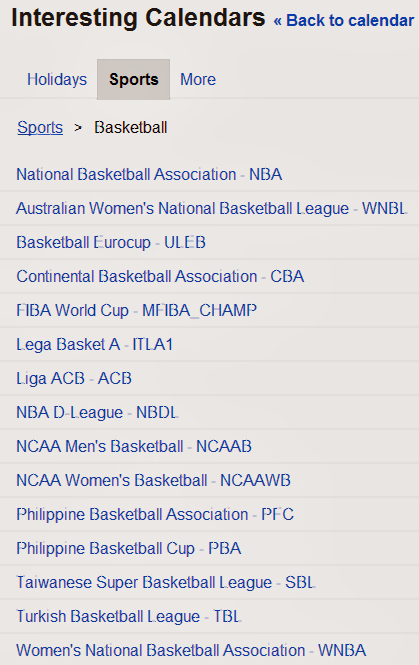
Basketball options include NBA, WNBA, TBL, SBL, PBA, PFC, NCAAWB, NCAAB, NBDL, ACB, ITLA1, MFIBA_CHAMP, CBA, ULEB, and WNBL


Even if you added your favorite sports team schedule to your calendar, revisit the options to see how many more are available today then when you made your first selection.

You can also add a friend's shared calendar, add a calendar by URL, import a calendar, create and manage your calendars.

What else are you adding to your calendars?


Sunday, August 11, 2013

Android Device Manager Have you set it up?

You can now set up your Android device with Android Device Manager as described in Google's blog post on August 2, 2013 titled, Dude, where's my phone? Simple steps to protect your Android this summer.

Make yourself aware of the notes and the steps required for the tools to remotely locate and factory reset your registered phone and/or tablet.

You can select the following options:
Ring. Ring your device at full volume for 5 minutes - even if it’s set to silent or vibrate.

Erase Device. Perform a factory reset, which permanently deletes all of your data.

Note from Android Device Manager help: 
If your device is offline, Android Device Manager won't be able to ring or erase the device until there is a mobile data or Wi-Fi connection. Select Erase Device in advance and your device's data is deleted when it is back online. Android Device Manager does not work for devices that are powered off.

If you have been using Lookout (for Android / for iPhone/iPad), you can already do this from the Lookout site or via the Lookout Chrome App. An additional feature offered by Lookout is Signal Flare, which saves the phone's location when the battery is low.

And users of the many Android mobile security apps have a diverse group of features depending on your preferences.


So have you activated your Android Device Manager yet? If not, what is your favorite mobile security app?